If you’re looking to how do i reset my Hikvision to factory settings, this guide gives you the officially documented methods to restore your Hikvision devices to their original configuration. Whether you’re troubleshooting, re-configuring, or setting up hardware for a new deployment, following the correct steps ensures a clean and reliable reset every time.
1. Resetting a Hikvision IP Camera to Factory Defaults
A. Physical Reset (Using RESET Button)
Applicable when the camera has a physical reset button.
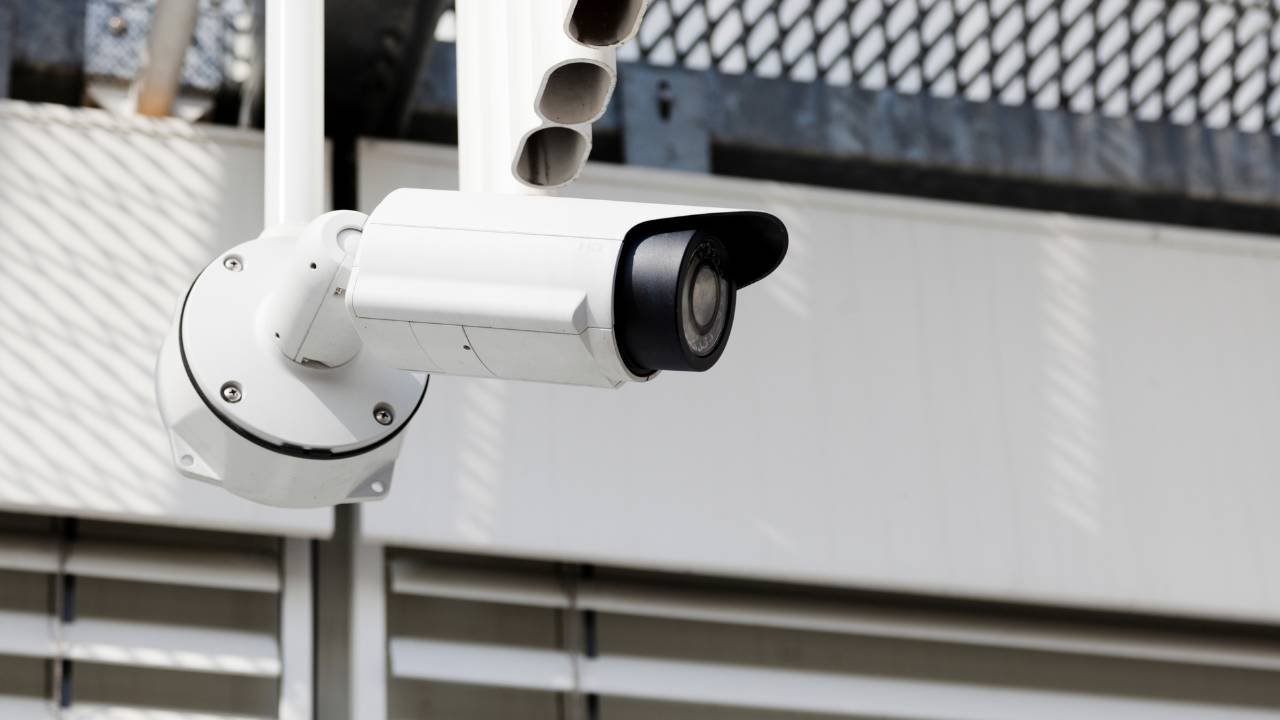
- Locate the Reset Button on the camera (often inside or near the base).
- Power the Camera On.
- Press and Hold the Reset Button for the required duration according to your model (usually ~90 seconds).
- Official documented method: Press and hold the button on the camera for about 1.5 minutes total. after the first 30 seconds, disconnect then reconnect the network cable while continuing to hold the reset button.
- Release after holding for the full period.
- Wait for the Camera to Restart. Your camera will reboot back into a factory unactivated state.
B. Software Reset (Web Interface)
Useful when you have access to the camera interface.
- Log into the camera’s web interface using your admin credentials.
- Navigate to Configuration → System → Maintenance → Upgrade & Maintenance (or similar).
- Select Default (factory default) and confirm, default will reset all parameters to factory values.
2. Resetting a Hikvision DVR to Factory Settings
For DVR models that support menu reset:
- Connect a monitor and mouse to your DVR.
- Access the main menu: Menu → Maintenance → Default.
- Select Factory Defaults to erase all settings back to factory state. Confirm and wait for reboot. This resets all configurable settings (network, camera layouts, recording configs).
3. Resetting a Hikvision NVR to Factory Defaults
Most modern Hikvision NVRs (Network Video Recorders) support reset through their local GUI:
- Log into the NVR using an admin account.
- Go to Maintenance → Default in the system menu.
- Choose Factory Defaults to erase all parameters and restore original factory state.
- Confirm the selection and allow the system to reboot.
Important Notes Before Resetting
- Backup Your Configurations: Saving your current configuration can prevent accidental loss of critical settings.
- Password / Activation: Factory resetting will remove custom passwords and may require reactivation. Some models may need re-setup via tools like SADP if passwords are lost (refer to Hikvision support).
- Separate Camera vs Recorder Reset: Resetting your NVR/DVR does not automatically reset the individual IP cameras. Each camera’s settings must be reset separately if required.
About VIKYLIN – Hikvision Authorized Reseller
VIKYLIN is a trusted Hikvision authorized reseller, offering a wide range of official Hikvision CCTV products and expert support services globally. We specialize in tailored security solutions, from IP cameras and NVR/DVR systems to advanced analytics and complete surveillance setups. With deep technical expertise and commitment to quality, VIKYLIN helps businesses implement and manage Hikvision systems effectively.
Conclusion
Correctly understanding how do i reset my Hikvision to factory settings ensures your device returns to a known good state without residual configuration issues. If you’re unsure about the process, contact VIKYLIN for professional guidance or product inquiry, we’re happy to support your CCTV system needs!