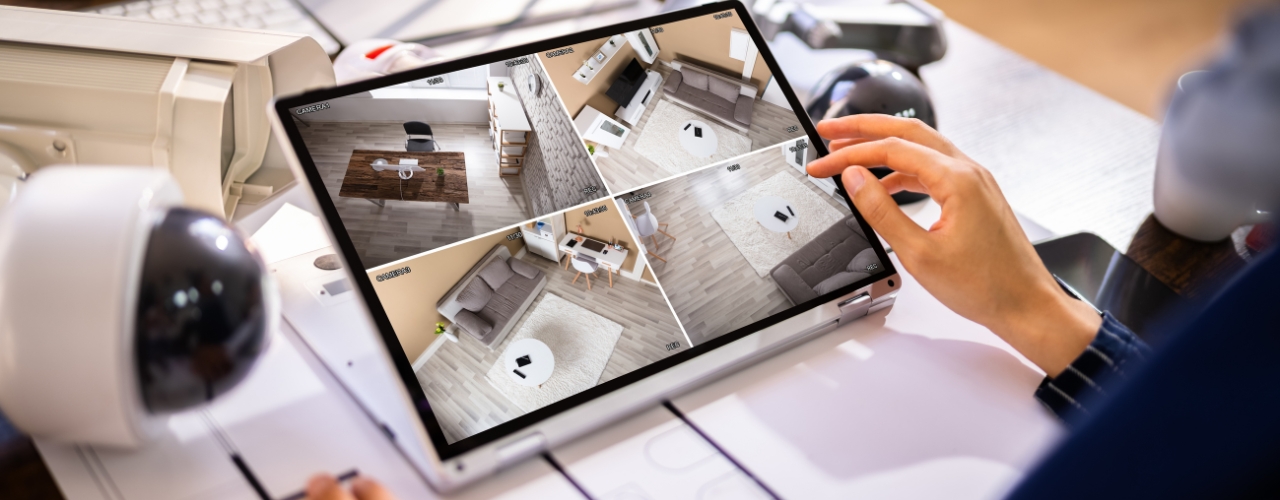
Remote mobile surveillance gives you real‑time access to your security cameras from anywhere. With the Hik‑Connect app, you can connect and manage your Hikvision cameras, DVRs, or NVRs using a smartphone (Android or iOS), enabling live view, alerts, playback, and more. In this guide, we walk through the complete process of add Hikvision camera to mobile device.
What You’ll Need?
Before you begin:
- A Hikvision camera, DVR, or NVR
- Smartphone (iOS or Android)
- The Hik‑Connect app installed
- Device QR code or Serial Number (SN)
- A verification code set during device configuration
- Stable internet connection for both camera and mobile device
Step‑by‑Step Instructions
1. Install the Hik‑Connect App
Go to the Apple App Store or Google Play Store and install Hik‑Connect.
2. Register / Log In
Open the Hik‑Connect app and:
- Tap Register to create an account (using email or phone)
- Or Log In if you already have an account.
3. Prepare Your Device
Enable Hik‑Connect service / Cloud P2P on your camera or recorder so that it can be added to the app:
- Login to the device configuration (e.g., NVR’s web interface or local monitor).
- Go to: Configuration → Network → Advanced Settings → Platform Access.
- Choose Hik‑Connect / Cloud P2P and set a verification code.
- Ensure the device shows Online.
4. Add Your Device in the App
- On the Hik‑Connect app main screen, tap the “+” (Add Device) button.
- Choose one of the following:
- Scan QR Code from your camera label or device screen
- Manual Adding by entering the device’s Serial Number (SN) manually.
- The camera should be detected automatically after scanning or SN entry.
5. Enter Verification Code
After scanning the QR code or inputting SN, the app will prompt you to enter the verification code you previously configured on the device.
6. Confirm Adding and View Live
Once the verification code is accepted:
- The device will complete the binding process
- Your camera should appear in the app’s device list
- Tap the camera entry to view live video and other controls
Alternative Device Adding Methods
In addition to cloud P2P adding (QR/SN), some devices can be added via:
- IP/domain method by entering IP address, port, username, and password manually for devices that don’t support cloud access.
About VIKYLIN – Realiable Hikvision CCTV Distributor
VIKYLIN is a professional Hikvision CCTV distributor and security solutions provider offering a full range of Hikvision products, including cameras, NVR/DVR systems, access control, and more. We help you with product selection, technical support, and deployment to ensure reliable mobile access and system performance.
Whether you are setting up remote monitoring for home or business, VIKYLIN will assist with:
- Product selection tailored to your needs
- Configuration support
- Competitive pricE and warranty services
Conclusion
Adding your Hikvision camera to a mobile device via the Hik‑Connect app gives you remote monitoring, alerts, and easy access to your security feeds. Simply install the app, register, add your device via QR or serial, enter the verification code, and start viewing on mobile.
👉 Contact VIKYLIN today for product pricing and expert assistance!