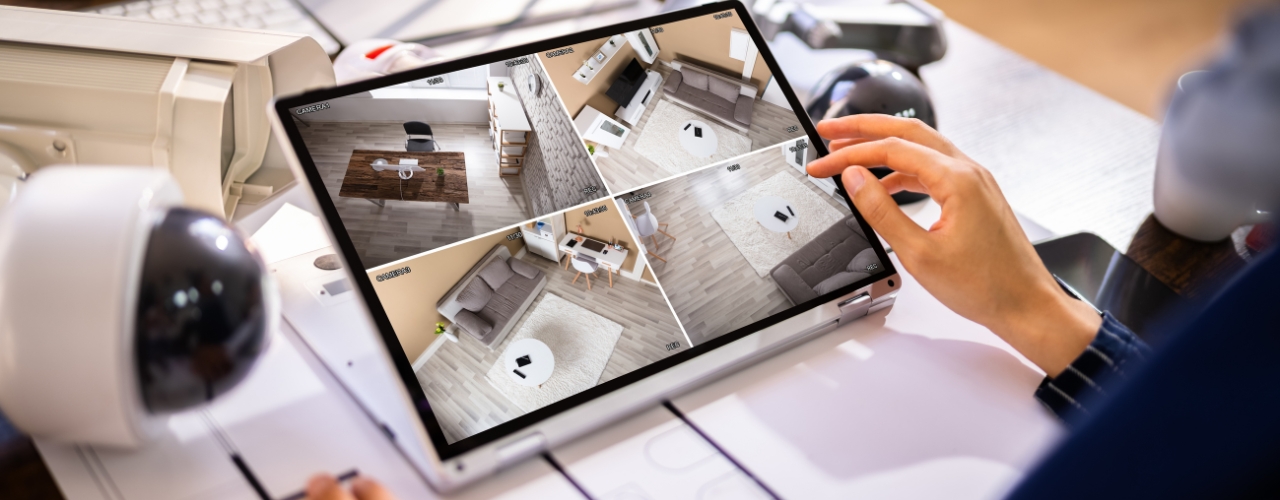
CCTV surveillance PTZ have become indispensable in modern surveillance systems, offering flexible monitoring with remote control over their movement and zoom functions. However, to unlock their full potential, a proper network setup is crucial. Whether you’re installing a PTZ camera for home security, business surveillance, or event monitoring, a stable and secure network connection ensures seamless operation, remote access, and reliable video streaming. In this guide, we’ll walk you through the step-by-step process of setting up a network for PTZ camera, covering everything from hardware preparation to advanced configuration.
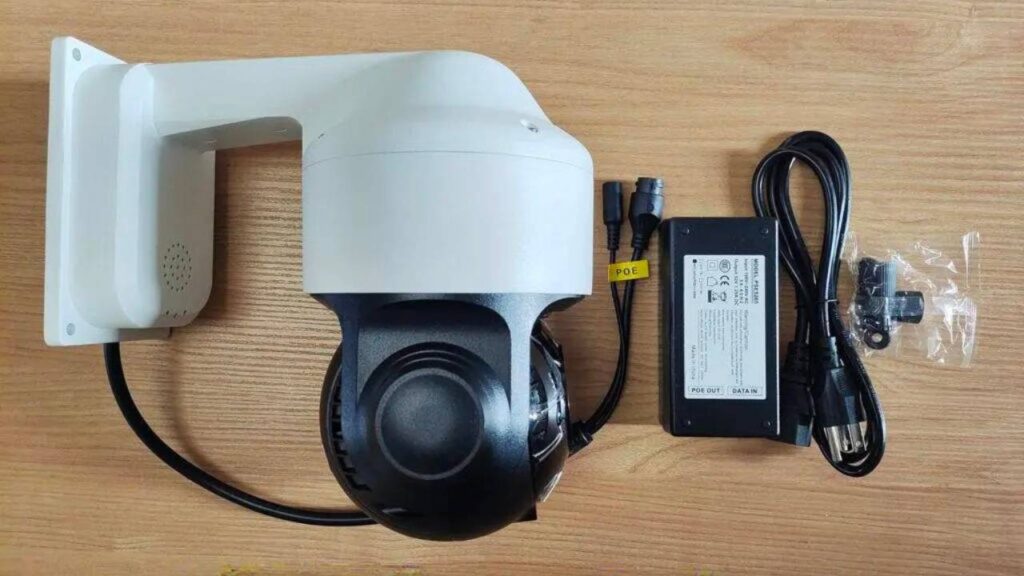
Understand CCTV Surveillance PTZ Network Requirements
Before diving into the setup, it’s essential to know your PTZ camera’s network specifications. Most modern PTZ cameras support either wired (Ethernet) or wireless (WiFi) connections, or both. Check the camera’s user manual for details such as:
- Supported network protocols (e.g., TCP/IP, HTTP, RTSP)
- Required bandwidth (varies based on resolution and frame rate; higher resolutions like 4K need more bandwidth)
- Power over Ethernet (PoE) compatibility (if applicable, simplifies setup by combining power and data in one cable)
- WiFi standards (e.g., 802.11ac for faster wireless speeds)
Gather Necessary Hardware
To set up the network for tracking surveillance cameras, you’ll need the following equipment:
- Tracking surveillance PTZ (obviously!)
- Network router or switch (preferably with PoE ports if using a PoE camera)
- Ethernet cables (Cat5e or higher for wired connections)
- Power supply (if not using PoE)
- Computer or mobile device (for configuration)
- Optional: Network video recorder (NVR) for storing footage
Choose Between Wired and Wireless Connection
Wired Connection (Ethernet)
A wired connection is generally more stable and secure than wireless, making it ideal for critical surveillance applications. Here’s how to set it up:
- Connect the camera to the router/switch: Use an Ethernet cable to plug one end into the camera’s Ethernet port and the other into a LAN port on your router or switch. If your camera supports PoE, ensure the router/switch has a PoE port or use a PoE injector.
- Power on the camera: If using a separate power supply, connect it to the camera and a power outlet. With PoE, the camera will receive power through the Ethernet cable.
Wireless Connection (WiFi)
Wireless setup offers more flexibility in camera placement but requires a strong WiFi signal. Follow these steps:
- Power on the camera: Use the provided power supply to connect the camera to a power outlet.
- Access the camera’s settings: Some tracking surveillance PTZ come with a mobile app; download and install it on your device. Alternatively, connect your computer to the camera’s default WiFi network (check the user manual for details) and access the camera’s web interface via a browser.
- Connect to your WiFi network: In the camera’s network settings, select your home or office WiFi network, enter the password, and save the settings. The camera will now connect to your WiFi network.
Configure Network Settings
Once the AI security PTZ is connected to the network, you need to configure its network settings to ensure it communicates properly with other devices and can be accessed remotely.
- Assign an IP address: By default, most cameras use DHCP, which automatically assigns an IP address from the router. However, for consistent access, it’s recommended to set a static IP address. This can be done through the camera’s web interface or the router’s admin panel (by reserving an IP address for the camera’s MAC address).
- Set up port forwarding: To access the camera remotely (from outside your local network), you need to set up port forwarding on your router. Log in to your router’s admin panel, find the port forwarding section, and forward the necessary ports (e.g., HTTP port 80, RTSP port 554) to the camera’s static IP address.
- Enable security features: Ensure the camera’s network connection is secure by enabling WPA2 or WPA3 encryption for WiFi, setting a strong password for the camera’s admin account, and disabling unnecessary network protocols.
Test the Connection
After configuring the network settings, it’s important to test the connection to ensure everything is working correctly.
- Local access: Open a web browser on your computer or the mobile app on your device, enter the camera’s IP address, and log in using the admin credentials. You should be able to view the camera’s live feed, control its pan, tilt, and zoom functions, and access its settings.
- Remote access: Test remote access by connecting to a different network (e.g., using mobile data on your phone) and trying to access the camera via its public IP address or a domain name (if set up). If you can view the live feed and control the camera, the remote access is working.
- Check video quality and stability: Monitor the live feed for a few minutes to ensure there are no lag issues, buffering, or disconnections. If you experience problems, check the network bandwidth, WiFi signal strength, or cable connections.
Troubleshooting Common Network Issues
If you encounter issues with the network setup, here are some common troubleshooting steps:
- No connection: Check the Ethernet cable connections, ensure the router is powered on, and verify the camera is receiving power. For WiFi, check if the camera is within range of the router and the WiFi password is correct.
- Remote access not working: Double-check the port forwarding settings on the router, ensure the camera’s static IP address is correct, and verify that your internet service provider (ISP) allows remote access (some ISPs block certain ports).
- Poor video quality: Reduce the camera’s resolution or frame rate if the network bandwidth is insufficient. For WiFi, move the camera closer to the router or use a WiFi extender to improve signal strength.
Conclusion
Setting up a network for PTZ camera may seem daunting at first, but by following these steps, you can ensure a stable, secure, and reliable connection. A properly configured network allows you to monitor your property remotely, control the camera’s movements, and store footage with ease.
If you’re looking for high-quality AI security PTZ or need expert advice on network setup, VIKYLIN is here to help. Our range of ptz security outdoor cameras offers advanced features and reliable performance, suitable for various applications. Whether you have questions about network configuration or want to inquire about our products and prices, our team of experts is ready to assist you. Contact us today for personalized support and the best quotes!