This guide explains how to enable PC-NVR video recording using Hikvision iVMS-4200, covering camera addition, storage server setup, disk formatting, and recording plan configuration. Follow these steps to ensure your surveillance system records reliably.
Step-by-Step Setup
1. Install iVMS-4200
Download iVMS-4200 from the official Hikvision website or request the installer from after-sales. Complete installation following prompts.
2. Add Cameras
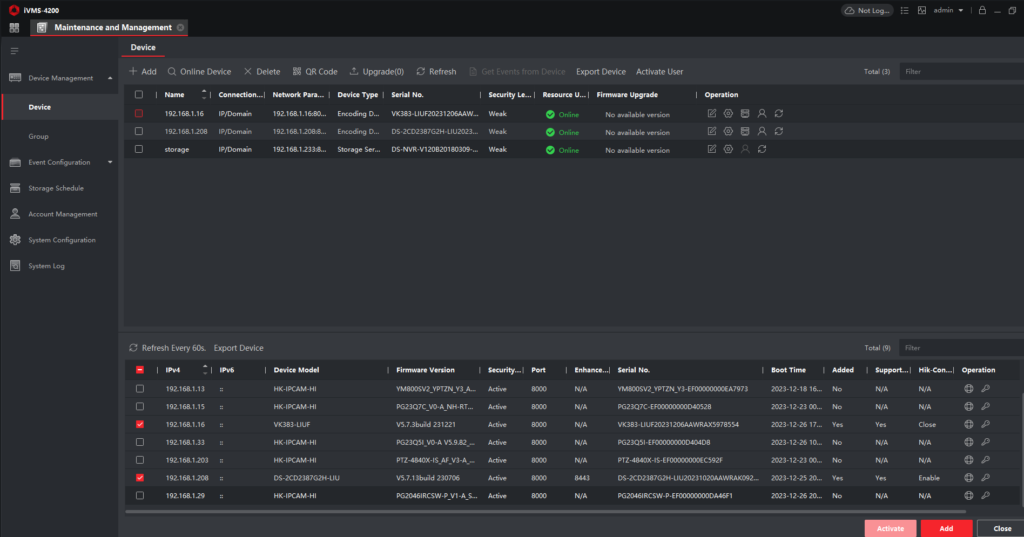
Add your cameras to iVMS-4200 using the standard device addition process.
3. Add Storage Server
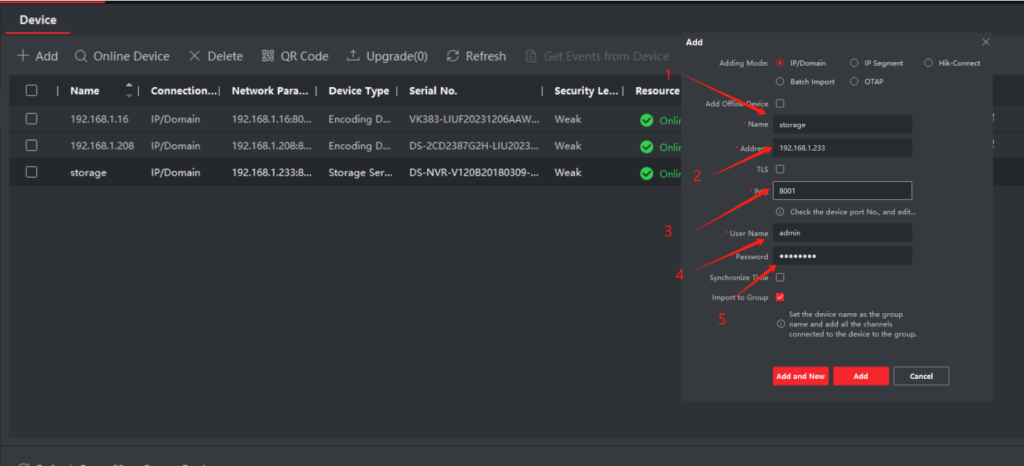
After opening and following the prompts to install and run the storage server, enter the IVMS-4200 [Maintenance and Management] interface and click [Device Management] – [Add Device].
- Adding Mode:IP/Domain
- Name: customized
- Address: fill in the storage server IP address (local computer IP)
- Port number: default 8000 (can be customized)
- User name: admin
- Password: your own configured password
- Import to the group check box, and then click Add.
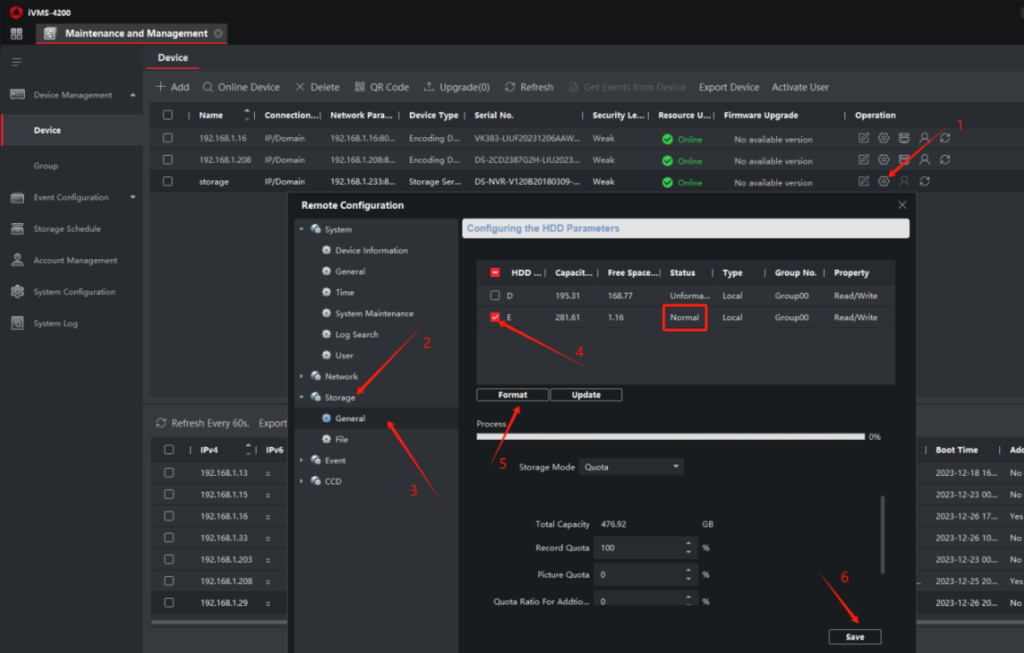
4. Format Hard Disk
- Go to Device Management, select your storage server.
- Navigate to Remote Configuration -> Storage -> Commonly Used.
- Select the hard disk to store videos, click Format.
- After formatting, disk status becomes Normal.
5. Configure Video Plan
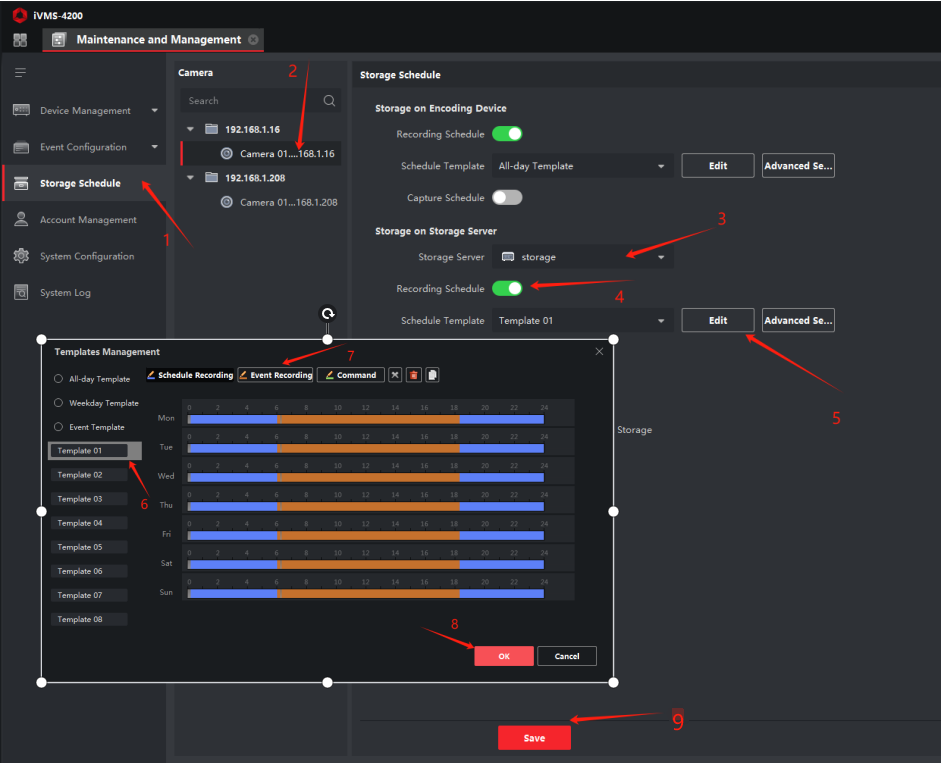
- Go to Maintenance and Management -> Storage Plan.
- Select channels for recording and storage server.
- Click Template, configure settings, then save.
- For multiple channels, use Copy To to apply the plan to other channels.
About VIKYLIN
VIKYLIN provides professional CCTV products, including video surveillance IP cameras, PTZ surveillance CCTV, and NVR systems. We offer genuine security products, technical support, and logistics services tailored for your needs.
Conclusion
Following these steps, your iVMS-4200 PC-NVR video recording system will be fully operational. For product inquiry, technical support, or customized security solutions, contact VIKYLIN for professional assistance.