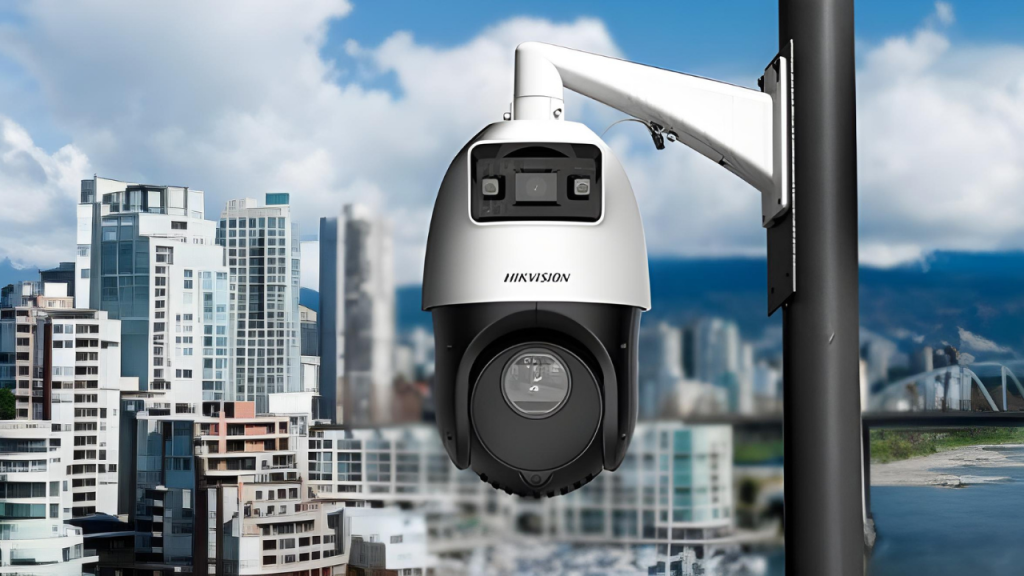
Hikvision PTZ (Pan Tilt Zoom) cameras are renowned for their versatility and functionality in surveillance systems, one of the useful features these cameras offer is auto rotate. In this blog post, we’ll walk you through the steps about how to auto rotate Hikvision PTZ camera, ensuring comprehensive coverage of your surveillance area.
What You’ll Need Before You Begin
Before starting, make sure you have
- Access to the Camera’s Web Interface: You need to know the camera’s IP address, and have valid login credentials (usually the default is admin with a password).
- A Stable Network Connection: Ensure that the Hik camera PTZ is properly connected to your local network, and the network is stable to avoid any disruptions during the configuration process.
Let’s Steps to Auto – Rotate Hikvision PTZ Camera
Step 1: Log into the Camera’s Web Interface
Open your web browser and type in the IP address of your Hikvision cameras PTZ. You’ll be prompted to enter the username and password. After successful login, you’ll be greeted with the camera’s main interface.
Step 2: Navigate to the PTZ Settings
Look for the “PTZ” or “PTZ Control” tab in the menu. This is usually located in the main menu or under a “Configuration” section. The exact location may vary depending on the camera model and firmware version.
Step 3: Set Up Auto Rotation
- Define Patrol Routes (Optional but Recommended): Some camera Hikvision PTZ allow you to set up patrol routes. A patrol route is a sequence of preset positions that the camera will move through during auto – rotation.
To create a patrol route:
- First, position the camera to the desired starting point. Then, click on the “Set Preset” button and assign a number to this position.
- Move the camera to the next position and repeat the process of setting a preset.
- Once you have all the presets set, go to the “Patrol” section. Here, you can define the order in which the camera will visit these presets.
- Enable Auto Rotation: In the PTZ settings, look for the “Auto – Rotation” or “Auto – Patrol” option. Check the box to enable this feature.
- You can also set the speed at which the camera rotates. The speed can usually be adjusted from slow to fast, depending on your preference and the area you need to cover.
- If you created a patrol route, select the patrol route you want the camera to follow during auto – rotation.
Step 4: Saving Your Changes
After making all the necessary adjustments, click on the “Save” or “Apply” button to save the changes. The camera will now start auto rotate according to your settings.
What to Do If Things Go Wrong
- Camera Not Auto Rotating: If the camera is not auto rotate as expected, double check your network connection. A weak or interrupted connection can cause configuration issues. Also, verify that you have correctly set up the auto rotate settings, including any patrol routes if applicable.
- Incorrect Rotation Pattern: If the camera is rotating in an unexpected pattern, review the patrol route settings. Make sure the presets are in the correct order and that the camera is not restricted by any physical obstructions.
Conclusion
It’s not too hard once you know how to auto rotate Hikvision PTZ camera. Just follow these steps, and you should be good to go. If you run into any more problems, don’t hesitate to contact VIKYLIN or reach out to Hikvision support.