Firmware is the core software inside the NVR. You must update firmware to fix issues and keep security strong. This guide shows how to update my Hikvision NVR firmware using the official Hikvision upgrade method.
Before You Start
- Check your NVR model name.
- Go to the official Hikvision download page.
- Download the correct firmware package for your model.
- Do not use firmware for other models or regions.
- Use a USB thumb drive formatted FAT32.
- Do not cut power during update.
Step-by-Step Firmware Update (Official Hikvision Method)
Step 1: Download the Official Firmware
- Click Download and save the .zip file to your computer.
- Go to Hikvision’s official firmware download section for DVR/NVR devices.
- Find the firmware specific to your NVR model, region, and version.
Step 2: Prepare the USB Drive
- Unzip the downloaded firmware file.
- You will find a file named digicap.dav (or similar).
- Copy only the firmware file onto the root of your USB drive.
Step 3: Insert USB Into Your NVR
- Plug the USB flash drive into an available USB port on the NVR.
- Use a connected mouse to control the NVR interface.
Step 4: Open the NVR Maintenance Menu
- On the NVR monitor, go to Main Menu.
- Select Maintenance → Upgrade.
Step 5: Initiate the Upgrade
- In the Upgrade menu, locate the firmware file from the USB.
- Select the firmware file (digicap.dav) and click Upgrade.
- Confirm when prompted — the NVR will automatically reboot after the update.
Step 6 — Verify Firmware Version
- After reboot, go to Menu → System Information.
- Confirm the updated firmware version displays correctly.
Alternate Method: Online Local Firmware Update
Some newer Hikvision NVR models that support Hik-Connect online updates can update directly from the local GUI:
- Enable Hik-Connect in Network → Hik-Connect.
- Ensure the NVR is online.
- In the firmware field, click the up arrow to start update.
- Select Online Upgrade and follow prompts to download and install.
Important Official Notes & Tips
- ✔ Region-specific firmware: Use the correct regional firmware for your NVR, using wrong firmware can damage the device.
- ✔ Upgrade order: Do not skip intermediate firmware versions if upgrading across multiple major versions, this avoids failures.
- ✔ Power stability: Always ensure the NVR is connected to an uninterruptible power source during updates.
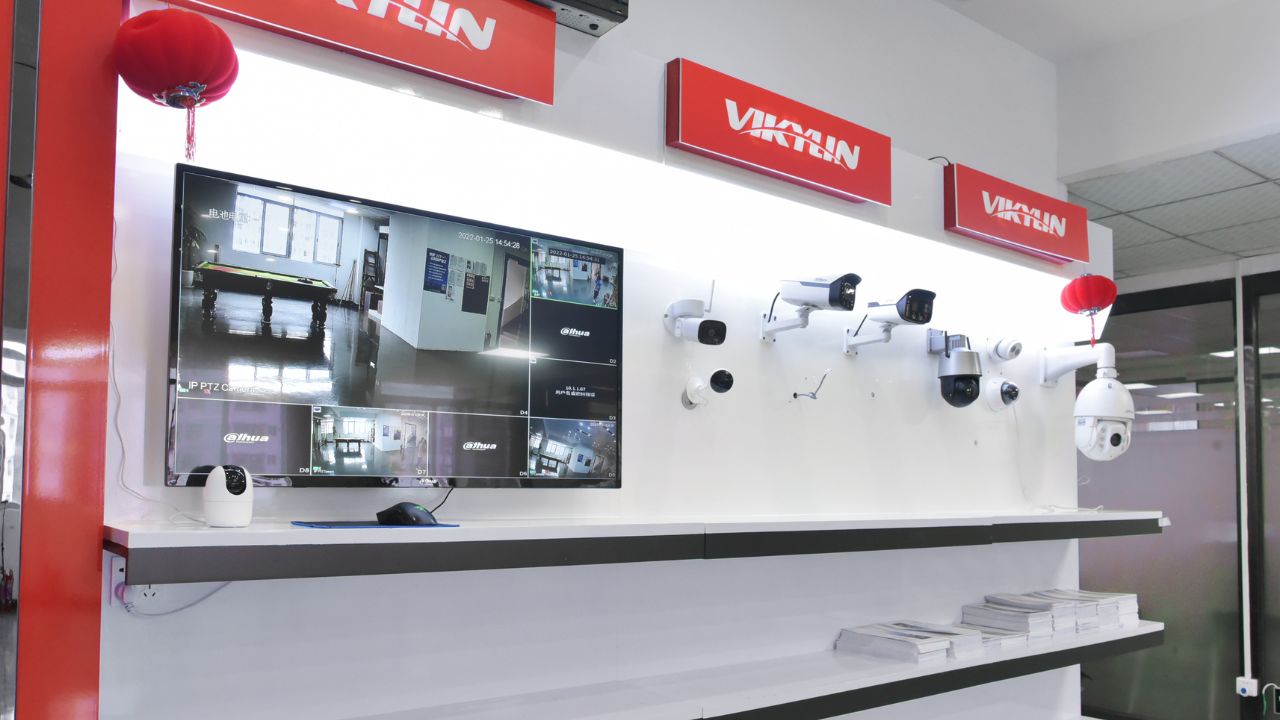
About VIKYLIN – Hikvision Authorized Distributor
VIKYLIN is a trusted Hikvision authorized dealer specializing in CCTV solutions, NVR firmware support, custom branded devices, and professional security system deployment. We support installers, integrators, and end users with accurate technical guidance and product recommendations.
Whether you need Hikvision CCTV NVRs, smart home cameras, or firmware support services, VIKYLIN delivers expertise and quality you can depend on.
Conclusion
Now you know how to update Hikvision NVR firmware using official Hikvision procedures with complete accuracy. Keeping your system firmware up to date helps ensure security, stability, and compatibility.
👉 Contact VIKYLIN today for product pricing, firmware support, or personalized recommendations!