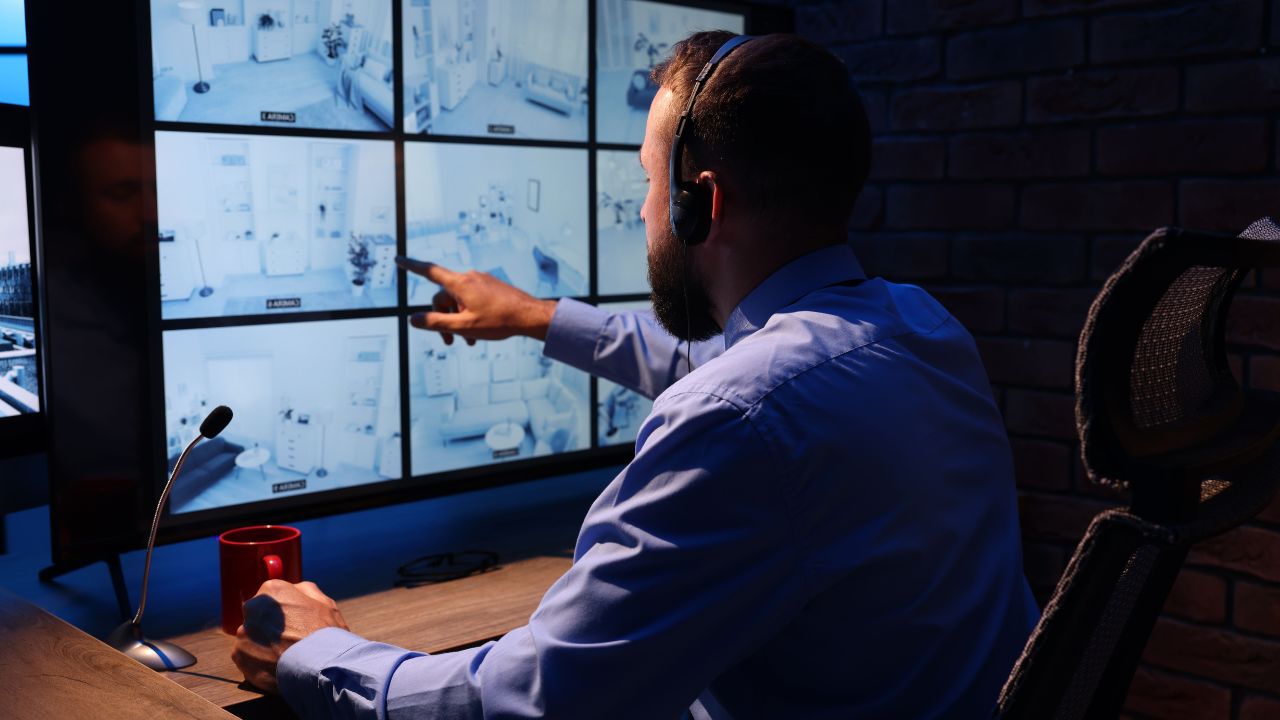
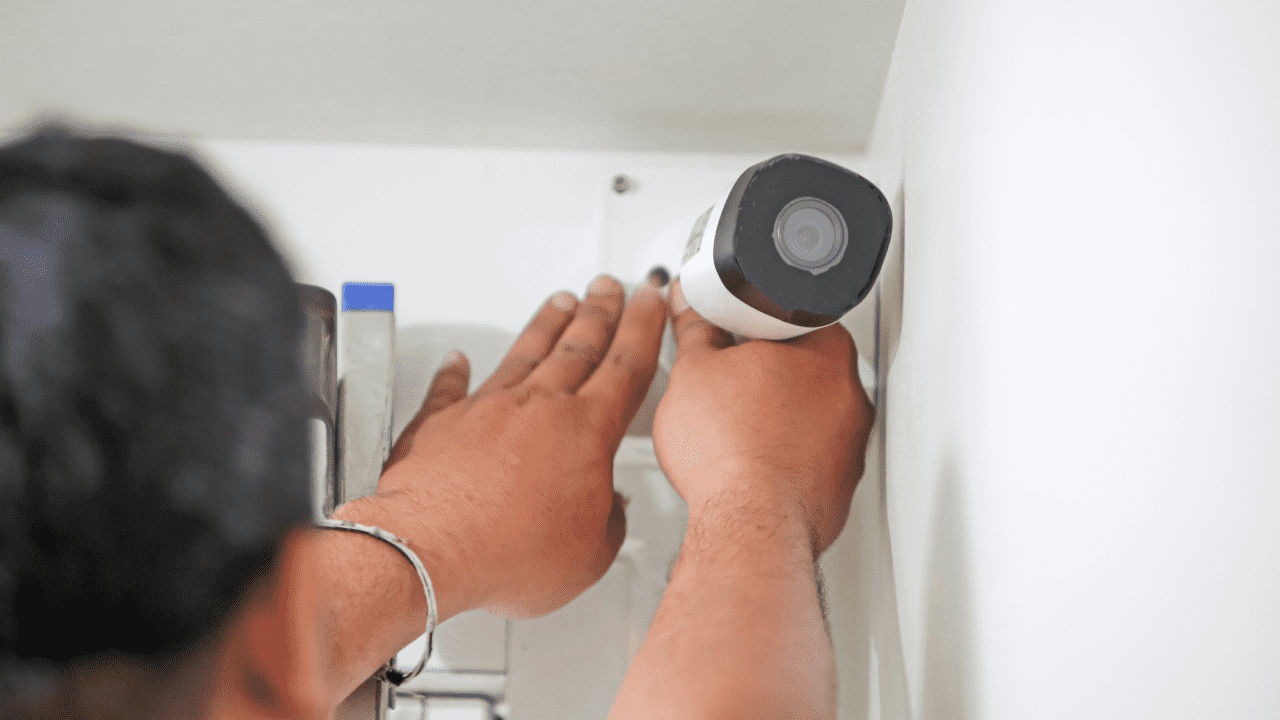
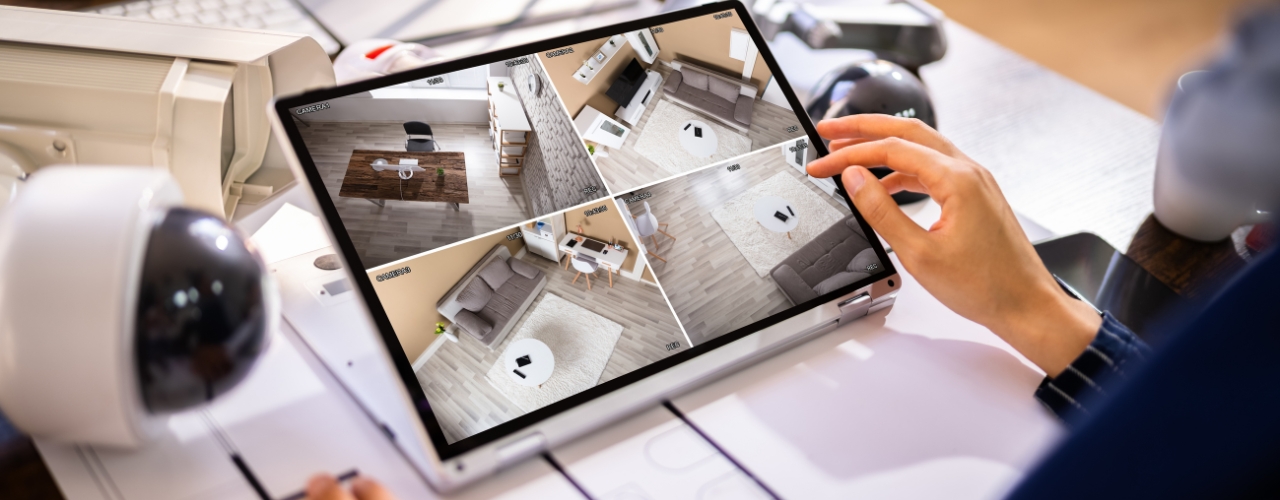
In today’s connected world, setting up a remote viewing PoE camera is a cornerstone of smart security. Whether you want to check your property from a mobile app security camera interface, on your PC, or through advanced software like Blue Iris, this article walks through practical steps to help you access your video feed reliably and securely.

Why Remote Access Matters
Remote access transforms a basic PoE (Power over Ethernet) camera into an always available monitoring tool. With the right configuration, you can:
- View live streams anywhere
- Get alerts on motion or sound
- Archive recordings off site securely
This transition from local to remote is why more people choose a smartphone remote viewing camera setup for everyday peace of mind.
Setup Essentials for Remote Viewing
Before diving into device specific steps, make sure your camera and network are ready:
Network Preparation
- A stable router with DHCP enabled
- Port forwarding or UPnP support
- Strong network password
Hardware Requirements
- PoE switch or injector
- Compatible camera (preferably onvif compatible PoE camera)
- LAN connection for initial setup
These basics ensure your device is reachable both locally and over the internet.
Accessing on Your Smartphone
Using a mobile app security camera is often the simplest way to monitor footage remotely:
Step by Step
- Install your camera and connect it to PoE.
- Download the camera’s official app (check it supports remote viewing).
- Register an account if needed.
- Add your camera using QR code or camera ID.
- Test the live feed over cellular or Wi Fi.
Tips for Reliable Mobile Access
- Enable push alerts for motion detection
- Use strong but memorable passwords
- Keep firmware up to date
Mobile access gives flexibility but it must be configured with security and usability in mind.
Remote Viewing on Your Computer
If you prefer a larger screen or browser interface:
Use Web Interface or Client
- Log in through your camera’s web portal (IP address + credentials)
- Install manufacturer software on Windows/Mac
- Bookmark the interface for faster access
Security Practices
- Switch to HTTPS access if available
- Change default ports
- Enable two factor authentication
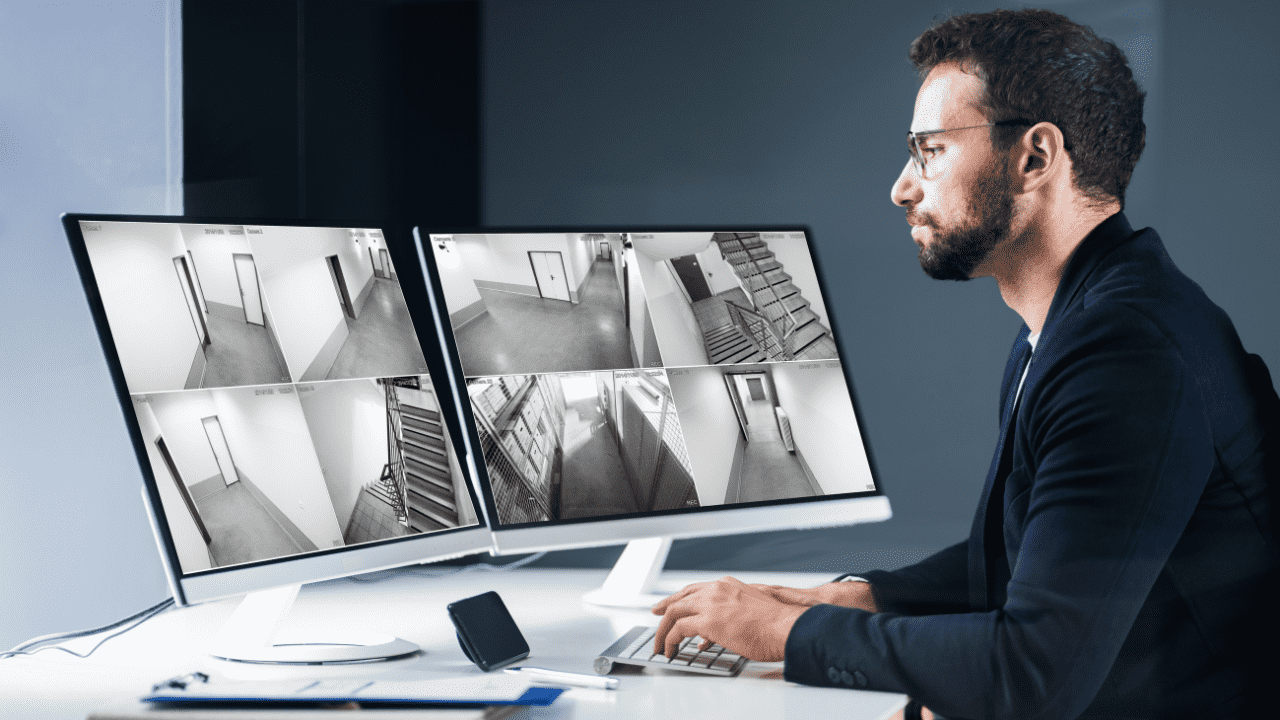
Viewing on a PC can be ideal for reviewing archived footage and managing multiple cameras at once.
Integration With Blue Iris
Many users want centralized control of multiple cameras, which is where Blue Iris comes in:
What Blue Iris Offers
- Unified dashboard
- Advanced alert rules
- Recording schedules
- Remote access support
How to Add Your Camera
- Open Blue Iris and click Add Camera.
- Enter the camera’s ONVIF/RTSP stream URL.
- Select the correct protocol (make sure your device is blue iris compatible camera).
- Confirm credentials and test the feed.
With this setup, Blue Iris becomes a single point for remote viewing and storage management.
Recommended Camera for Remote Access
Here’s a solid option if you’re starting fresh or upgrading:
Link: https://www.amazon.com/VIKYLIN-Security-Panoramic-Detection-Compliant/dp/B0DTJTZ4NV/
- PoE for single cable power and data
- Clear HD video quality
- ONVIF compliance for broader software support
- Easy mobile app registration
- Motion detection alerts
- Suitable for home or business
This camera works well with both smartphone and PC setups and is a practical choice for secure access.
About VIKYLIN
At VIKYLIN, we focus on delivering security products that blend performance with real world ease of use. Our core advantages include:
- Genuine Quality Assurance – Every product meets industry build and performance standards.
- After Sales Support – Responsive help for setup, troubleshooting, or upgrades.
- Efficient Logistics – Fast order handling and global shipping options.
Our products consistently support reliable remote access, whether via mobile apps, computer browsers, or software like Blue Iris.
Conclusion
Setting up a remote viewing Poe camera doesn’t have to be technical or risky. With clear network steps, secure practices, and the right hardware, you can monitor from your phone, PC, or Blue Iris with confidence. Contact VIKYLIN for tailored product recommendations and pricing, and start enhancing your security with a system that connects to you wherever you are.